Greenhouse application form on WordPress
Set up the Greenhouse application form on WordPress: the questions it shows, what happens on submit, the Submissions log and the developer hooks.
On this page
With a Job Board API key, candidates apply on your job pages and arrive in Greenhouse as applications on that job.
Turn on on-site applications
- Add a Job Board API key. You create it yourself in Greenhouse; no partner approval is needed.
- Leave Greenhouse → Settings → Applications on Automatic, or choose On-site application form. Both need the key; without one, applicants are sent to Greenhouse. Choose Send applicants to Greenhouse to keep the button even with a key saved.
The form replaces the Apply on Greenhouse button on every job page. Each job’s JobPosting
markup then includes directApply: true, which tells Google that candidates can apply on the
page.
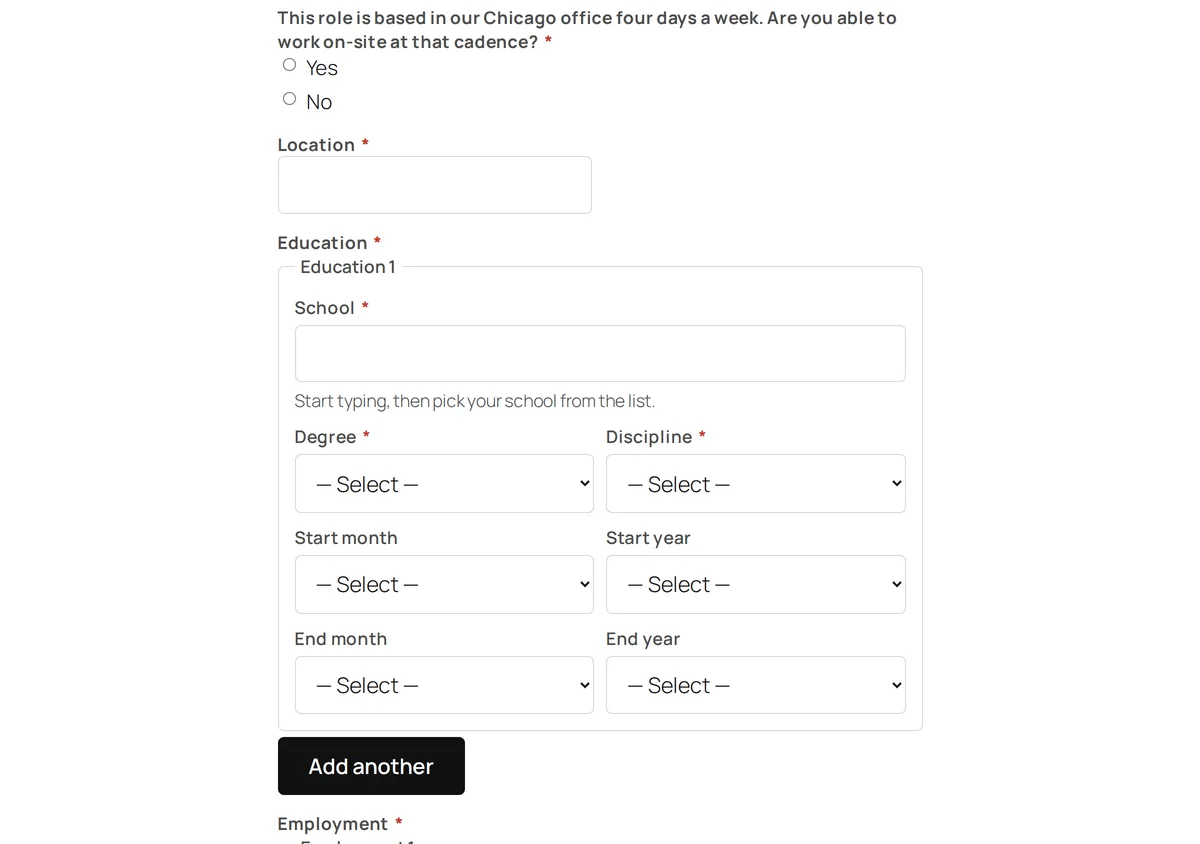
What the Greenhouse application form asks
The form is built from the questions Greenhouse returns for each job, so different jobs can ask different questions. It shows them in this order:
- First name, Last name, Email, Phone. The first three are always required. Phone is required when the job requires it in Greenhouse.
- The job’s questions, in Greenhouse’s order. These include Resume/CV and Cover Letter, each a file upload or pasted text (a required one is satisfied by either), and custom questions such as a LinkedIn profile or screening questions.
- Location questions, when the job asks where the candidate is based.
- Education and employment history, when the job asks for them. See below.
- EEOC and demographic questions, when the job has them. See how these answers are handled.
- The consent checkbox, when turned on under Greenhouse → Settings → Privacy. A job that requires GDPR consent in Greenhouse always shows it, whatever the setting. The box must be ticked to apply.
When a job carries Greenhouse’s AI disclaimer, it is shown above the form, with a Request to opt out of AI review link when the job has an opt-out address.
Greenhouse question types become these form inputs:
| Greenhouse type | Form input |
|---|---|
| Short text | Text box (an email or phone box for those fields) |
| Long text | Text area |
| Single select | Radio buttons for up to four options, a dropdown for more |
| Multi select | Checkboxes |
| Yes/No | Yes and No radio buttons. A “No” answer is sent to Greenhouse as a real answer, not left blank |
| File | File upload |
| Hidden | Not shown, and nothing on the form fills it in |
Greenhouse accepts an application even when a required answer is missing, so the plugin checks every required question on your site before anything is sent.
Every control has a label, and a required Resume/CV or Cover Letter choice between a file and pasted text is announced as required. Error messages are linked to their fields, which are marked invalid. After a failed submit, focus moves to the first field to fix, or to the message; after a sent application, to the thank-you message.
Questions are cached for an hour. After you change a job’s questions in Greenhouse, use Clear cache under Greenhouse → Settings → Tools to show the change straight away.
Education and employment history
A job that asks for education or employment history in Greenhouse gets that section on the form, marked required or optional as the job says.
- Education: School, Degree, Discipline, then a start and an end month and year. School, degree and discipline are required once an entry is started. Dates are optional, but month and year go together: half a date asks “Choose the month too, or clear the year.” (or the reverse).
- Employment: Company, Title, a start month and year, I currently work here, then an end month and year. The end date is required unless I currently work here is ticked, which hides it.
Applicants can add up to 5 entries per section with Add another and take one out with Remove. Without JavaScript each section takes one entry. A required section needs at least one; blank entries in an optional section are skipped. Years start 60 years ago. Start years stop at this year, and a start month later than this month is refused; end years reach 6 years ahead, for an expected graduation. An end date before the start date is refused.
The degree and discipline lists come from your Greenhouse account and are cached for a day. School suggestions appear as the applicant types, from the second character. A school typed without picking a suggestion is matched when the form is sent: an exact name, or the only match, is used. Anything else asks the applicant to “Pick your school from the list of suggestions.” and offers the matches.
If the degree and discipline lists cannot be loaded, the education section is left out and tried again after 5 minutes. A job that requires education then shows the Apply on Greenhouse button instead of the form.
The suggestions come from GET /wp-json/ghjb/v1/education/schools?term=, which answers only
while your site takes applications on-site. Each visitor’s IP address, or IPv6 /64 network, can
send 30 searches a minute on to Greenhouse; answers already cached don’t count.
EEOC and demographic answers
EEOC questions (gender, race, veteran status, disability status) are always optional. Demographic questions follow the job’s settings in Greenhouse. When the job asks for consent to demographic data, a Demographic data consent checkbox comes first: the answers are sent only when it is ticked, and required questions become required only then.
These answers go to Greenhouse with the application and are never stored on your site: not in the Submissions log, the application emails or WordPress’s personal data export.
File uploads
File fields accept PDF, DOC, DOCX, TXT, RTF and ODT files up to 5 MB. Your server’s PHP upload
limit applies on top, so check upload_max_filesize if large files fail.
Uploaded files sit in a private temporary folder, wp-content/uploads/ghjb-tmp, under a random
name while the application is sent, and are deleted straight after. The original file name still
goes to Greenhouse. The folder denies web access on Apache (Require all denied). A file an
interrupted request leaves behind is removed by the next upload once it is an hour old. Files never
enter your Media Library.
What happens when someone applies
The form submits in the background and shows the result without reloading the page. Without
JavaScript it submits as a normal form, and the page opens at the form’s message. A sent
application redirects to the same page with ?ghjb_applied=<job ID>, which shows the thank-you
message, so reloading never sends it twice. A failed one comes back with the typed answers kept; files need attaching again.
Before anything is sent to Greenhouse, the plugin checks these, in order. The applicant sees the message shown when a check fails:
| Check | Message |
|---|---|
| A rate limit of 10 attempts per 10 minutes from one IP address, or one IPv6 /64 network. Every attempt counts, including ones that fail a check. | “Too many applications submitted from this connection. Please try again later.” |
| The job is still open on your site. | “This job is no longer available.” |
| A hidden honeypot field that bots tend to fill in. | “Your submission could not be processed.” |
| For logged-in users only, that the page is not stale. | “Your session expired. Please reload the page and try again.” |
| The Turnstile or reCAPTCHA answer, when a provider has both keys saved. After any error, the captcha resets for the next try. | “Spam protection check failed. Please try again.” |
| Required answers, file types and file sizes. | “Please correct the highlighted fields and try again.”, with a message on each field |
Behind a proxy, set the real visitor address with the ghjb_client_ip filter, or all applicants
share one allowance.
The field messages include “First name is required.”, “Resume/CV is required — attach a file or paste the text.”, “Please enter a valid email address.”, “Unsupported file type. Allowed types: pdf, doc, docx, txt, rtf, odt.” and “The file is too large. Maximum size is 5 MB.”
Then the application goes to Greenhouse, and the applicant sees one of these outcomes:
| Outcome | What the applicant sees |
|---|---|
| Greenhouse accepts it | “Thank you — your application has been submitted.” |
| Greenhouse rejects answers and names the fields | “Please correct the highlighted fields and try again.”, with those fields highlighted |
| Greenhouse rejects answers without naming a field on the form | “Greenhouse could not accept this application. Please check your details and try again.” |
| Greenhouse rejects the API key | “Applications are temporarily unavailable. Please try again later.” |
| Greenhouse is busy | “Greenhouse is busy right now. Please try again in a moment.” |
| Anything else | “Your application could not be sent. Please try again later.” The details are recorded in Submissions. |
Once Greenhouse accepts it, the job’s Applications count goes up by one, and the application emails go out if you turned them on. The hiring team email holds the job, the applicant’s name, email and phone, and a note that the resume and answers are in Greenhouse.
When a visitor arrives through a Greenhouse tracking link (one with ?gh_src=), the plugin
remembers the source for 30 days and sends it with the application, so Greenhouse credits the
right source.
When the API key stops working
The plugin uses the key for one thing only: sending an application. Job lists, job pages and each job’s questions come from your public job board and never use it.
If Greenhouse rejects the key, for example after it is deleted in Greenhouse, the form stays up but applications fail, and applicants see “Applications are temporarily unavailable. Please try again later.” An admin notice names the problem and the fix: create a new Job Board API key and save it under Greenhouse → Settings.
When a job shows the Apply on Greenhouse button
A job shows the Apply on Greenhouse button instead of the form when:
- Applications is set to Send applicants to Greenhouse, or no API key is saved;
- the job’s questions cannot be loaded, for example while Greenhouse is unreachable. The plugin tries again after a minute;
- the job requires education history and the degree and discipline lists cannot be loaded.
The button links to the job on your Greenhouse job board. If that address points back at your
own site, as it does when the Greenhouse board is embedded on your careers page, the button links
to Greenhouse’s hosted application page instead:
https://job-boards.greenhouse.io/embed/job_app?for=<board token>&token=<job ID>
(job-boards.eu.greenhouse.io for a board in Greenhouse’s EU data centre).
The Submissions log
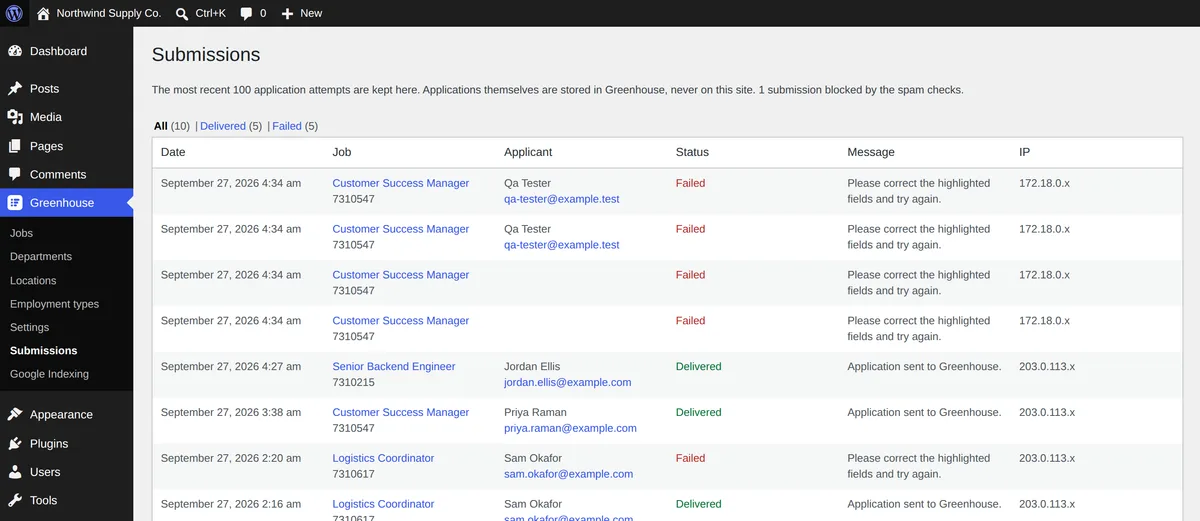
Greenhouse → Submissions lists the last 100 application attempts, newest first, while Log submissions is on under Greenhouse → Settings → Features. It is on by default. Each entry shows:
- the time, the job and its Greenhouse ID;
- the applicant’s name and email;
- Delivered, Failed or Email failed;
- a message: on a failure, the error in plain words and, when Greenhouse answered, its HTTP status and reply;
- the applicant’s IP address, shortened.
Greenhouse returns no candidate ID when it accepts an application, so entries do not link to the candidate in Greenhouse. Find them there by name or email.
Answers and files are never stored on your site; they go only to Greenhouse. You can filter the list by Delivered or Failed. Attempts the honeypot, the captcha or the rate limit blocked are only counted, not listed. Clear log empties it.
Entries are included in WordPress’s Tools → Export Personal Data and Tools → Erase Personal Data, matched by the applicant’s email.
If the WP Logs plugin is active, each attempt is also written to its log, without the applicant’s name or email.
Developer hooks
| Hook | Type | Use it to |
|---|---|---|
ghjb_application_fields | filter | Change the whole form: add, remove or reorder groups of fields. Receives the groups and the job. |
ghjb_map_application_group | filter | Change how one Greenhouse question becomes a group of inputs. Receives the group and Greenhouse’s question. |
ghjb_map_application_field | filter | Change how one Greenhouse field becomes a form input. Receives the field and Greenhouse’s field. |
ghjb_application_payload | filter | Change the application data sent to Greenhouse. Receives the data, the groups and the submitted values. |
ghjb_allowed_file_types | filter | Change the accepted file extensions. Default pdf, doc, docx, txt, rtf, odt. |
ghjb_max_upload_size | filter | Change the maximum upload size, in bytes. Default 5242880 (5 MB). |
ghjb_application_validation_errors | filter | Add your own field checks. Receives the errors, the groups, the submitted values and the files. |
ghjb_application_success_message | filter | Change the thank-you message. |
ghjb_application_rate_limit | filter | Change the number of application attempts allowed per IP address in each window. Default 10; 0 turns the limit off. |
ghjb_application_rate_window | filter | Change the rate limit window, in seconds. Default 600, minimum 60. |
ghjb_application_form_ttl | filter | Change how long a job’s questions are cached, in seconds. Default 3600. |
ghjb_application_form_error_ttl | filter | Change how long a failed question load is remembered, in seconds. Default 60. |
ghjb_application_form_failure_ttl | filter | Change how long a question load that Greenhouse refused (HTTP 401 or 403) is remembered, in seconds. Default 300. |
ghjb_submission_log_max | filter | Change how many attempts the Submissions log keeps. Default 100. |
ghjb_client_ip | filter | Change how the applicant’s IP address is detected, for example behind a proxy. |
ghjb_recaptcha_score_threshold | filter | Change the minimum reCAPTCHA v3 score. Default 0.5. |
ghjb_application_submitted | action | Run code after Greenhouse accepts an application. Receives the Greenhouse job ID, the job, Greenhouse’s response and the applicant’s name, email and phone. |
ghjb_application_logged | action | Run code after any attempt is logged. Receives the log entry. |
ghjb_admin_notification_email | filter | Change the hiring team email, or return false to skip it. Receives the to, subject, message and headers, the job, the applicant and Greenhouse’s response. |
ghjb_applicant_confirmation_email | filter | The same for the applicant’s confirmation. |
For the education and employment sections:
| Hook | Type | Use it to |
|---|---|---|
ghjb_application_section_groups | filter | Add or change the education and employment sections. Receives the section groups and the job. |
ghjb_application_request_data | filter | Change the submitted values before they are checked and sent. Receives the values, the groups and the job. |
ghjb_complex_payload_keys | filter | Change the Greenhouse key each section is sent under. Default education → educations, employment → employments. |
ghjb_section_max_entries | filter | Change how many entries a section takes. Receives the limit and the section name. Default 5. |
ghjb_section_year_range | filter | Change the years the date dropdowns offer. Receives first and last. Start years never go past this year. |
ghjb_education_lists_ttl | filter | Change how long the degree and discipline lists are cached, in seconds. Default 86400. |
ghjb_education_lists_failure_ttl | filter | Change how long a failed list load is remembered, in seconds. Default 300. |
ghjb_school_search_rate_limit | filter | Change how many school searches a minute one IP address may send on to Greenhouse. Default 30; 0 turns the limit off. |
Example: post to a Slack channel whenever Greenhouse accepts an application.
add_action( 'ghjb_application_submitted', function ( $job_id, $job ) {
	wp_remote_post(
		'https://hooks.slack.com/services/XXXX/XXXX/XXXX',
		array(
			'headers' => array( 'Content-Type' => 'application/json' ),
			'body'    => wp_json_encode( array( 'text' => 'New application: ' . $job['title'] ) ),
		)
	);
}, 10, 2 );